
This guide describes the steps required to enable the ePOS-Print XML service on Epson printers for MobiRest Connect integration.
Important:
- On new devices, this service is often enabled by default, and no manual setup is required.
- If you are using the Android application, no manual configuration is required regardless of the printer model.
Manual setup is only necessary for Desktop applications (Windows, macOS, Linux) if the service is not already active.
Model Tm-T20III #
1. Accessing the Configuration Interface #
Open a web browser and enter the printer’s IP address in the address bar.

The system will prompt for credentials:
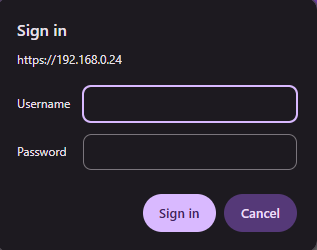
- Username: epson
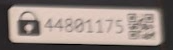
- Password: The code marked with a padlock icon located on the device label.
2. Checking Printer Status #
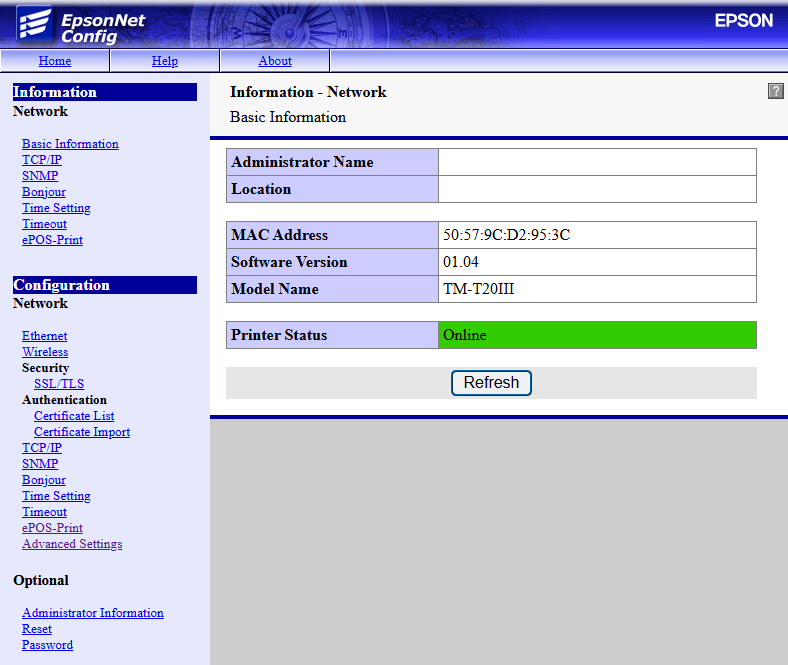
After logging in, navigate to Information – Network. Ensure that the Printer Status is Online.
3. Configuring ePOS-Print #
To allow the MobiRest Connect desktop application to communicate with the printer, follow these steps:
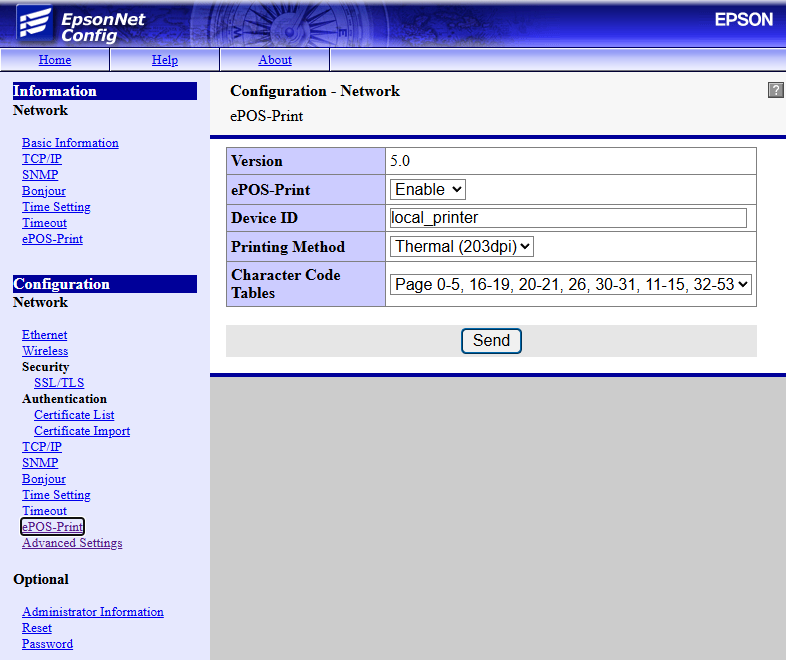
- In the left-hand menu, under Configuration – Network, click on ePOS-Print.
- Set the ePOS-Print option to Enable.
- Verify that the Device ID is set to local_printer.
- Click the Send button to save the settings.
Once saved, the printer is ready for use with the MobiRest Connect desktop application.
Troubleshooting #
- If you encounter any issues, double-check all connections (if relevant).
- Refer to your thermal printer’s user manual for detailed troubleshooting information.
- Contact your thermal printer vendor or IT support for assistance.