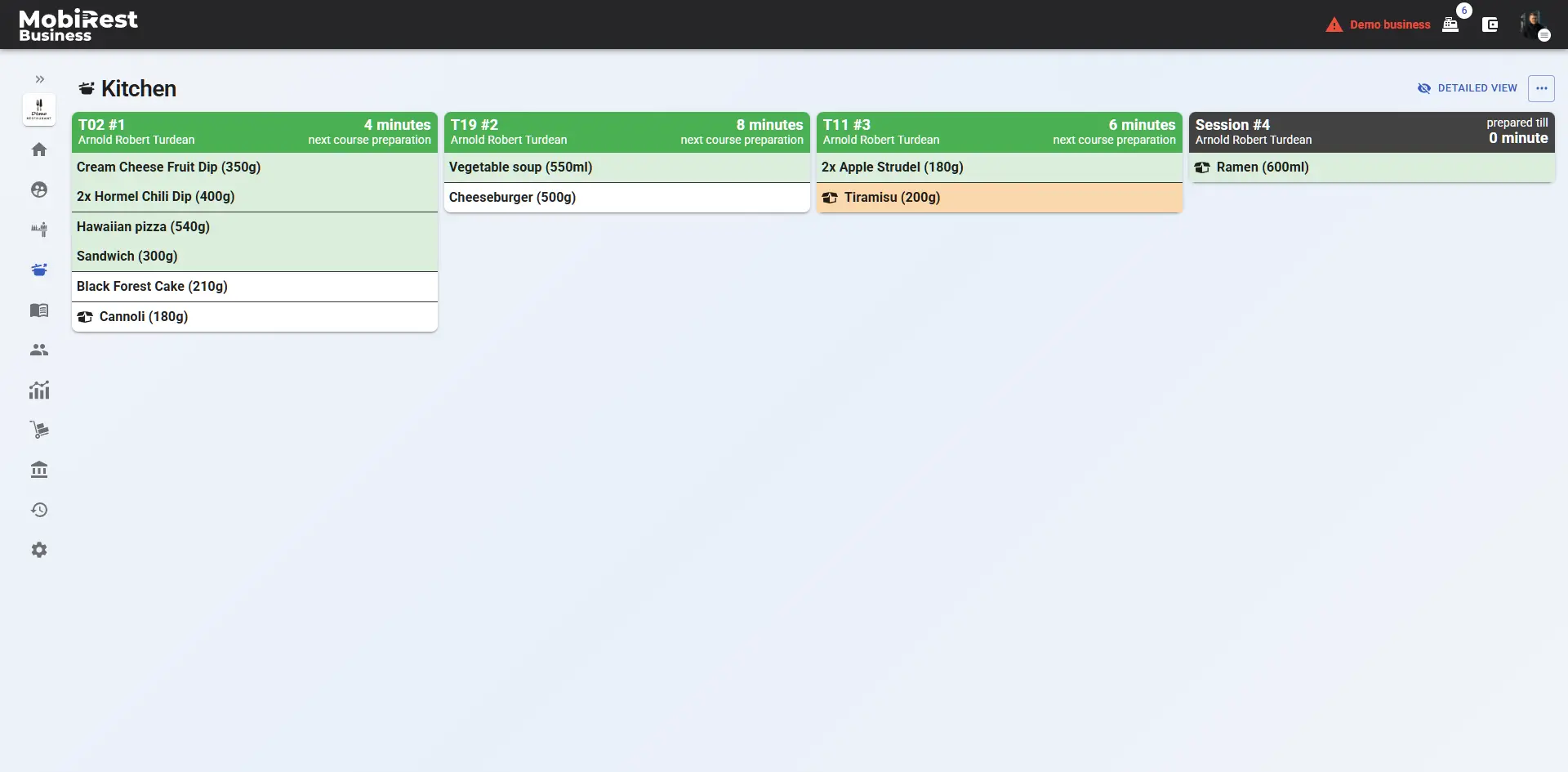
In restaurants and pubs, you typically have dedicated preparation areas, such as the kitchen or bar, where food and drinks are made.
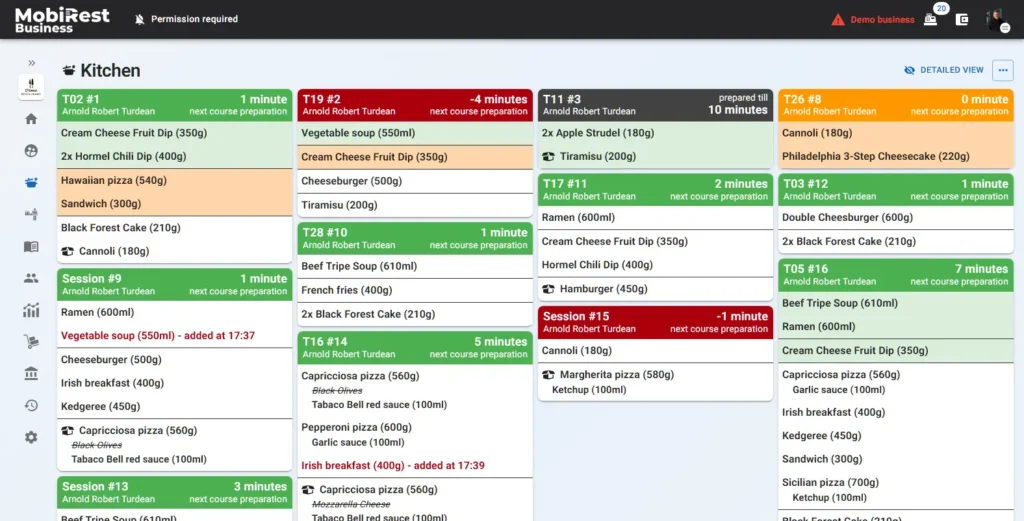
MobiRest displays ordered preparable items to chefs and bartenders as soon as waiters or customers place an order. They can then mark items as “preparing” and later as “prepared.” Once an order is ready, the system automatically notifies both employees and customers.
Set up your prepare locations #
To set up your preparation locations, navigate to “Settings/Features & tools” → “Display System(s)”.(https://admin.mobirest.business/settings)
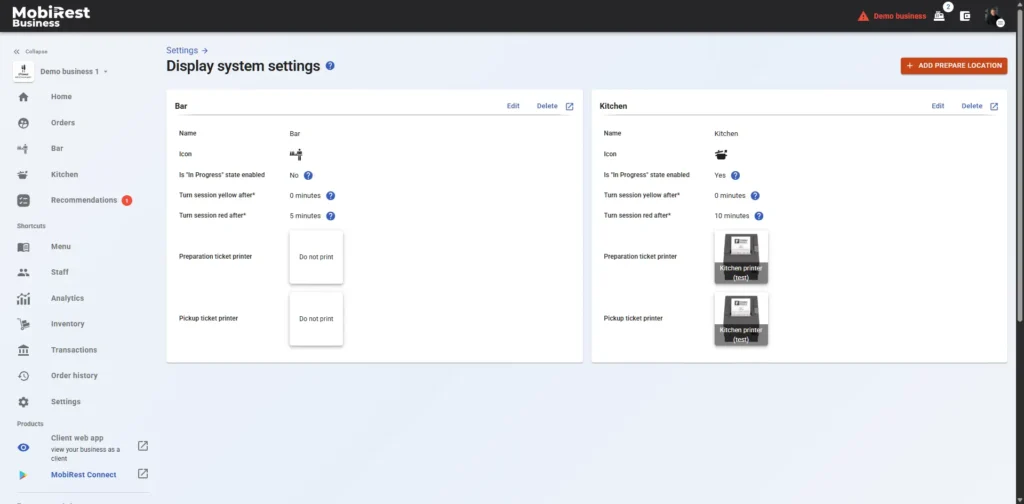
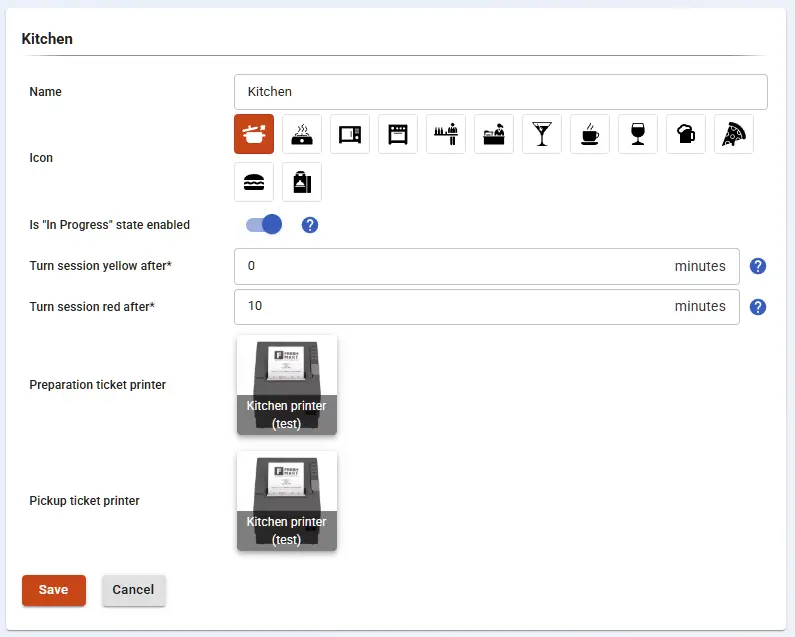
To add a new preparation location, click the “Add prepare location” button in the top-right corner. Then, name it (e.g., “Kitchen”) and select an icon that will be displayed for your employees.

You can further customize your preparation location by editing them. Here, you can configure the following:
- Is “In Progress” state enabled: If enabled, chefs and waiters can mark items as “preparing” before marking them as “prepared.” This helps track progress in the kitchen or bar. If disabled, items will go directly to the “prepared” state.
- Turn session yellow/red after X minutes: The system estimates average preparation times and uses this setting to color-code and order the orders based on their preparation delays. This helps chefs and bartenders prioritize tasks efficiently.
- Preparation ticket printer: If you select a device here, items that need to be prepared at the corresponding preparation location will be automatically printed on the selected device when a waiter picks up an order.
- Pickup ticket printer: If you select a device here, items that need to be served will be automatically printed on the selected device when an order or a course is prepared at the corresponding prepare location.
To delete a preparation location, simply click the “Delete” button.
Prepare location personalization #
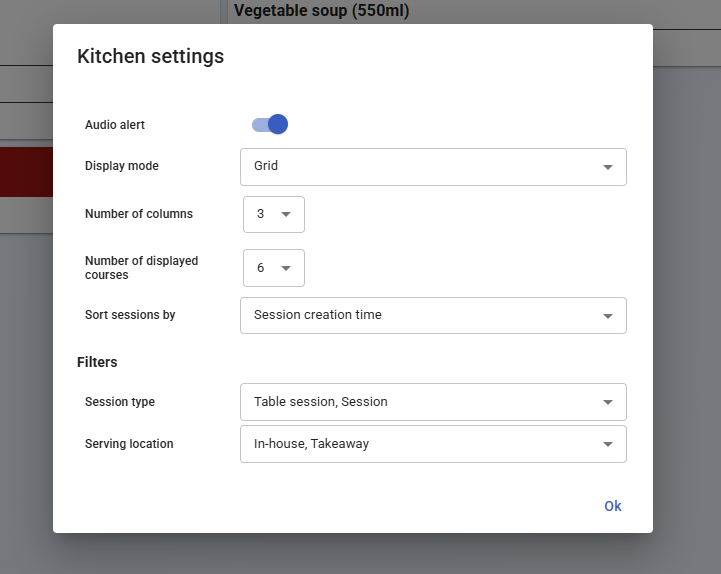
On any preparation location screen, click the More Options menu in the top-right corner, then select Settings.
In this section, you can customize the behavior of the preparation location. Multiple devices can be linked to the same location — for example, packed items can appear on one device while unpacked items appear on another. Each preparation location can be individually configured by device.
You can also personalize various display and notification options, such as:
- Applying filters according to your operational needs.
- Enabling or disabling audio alerts when new orders are received.
- Adjusting how orders appear on the screen (display mode, number of columns, number of courses).
- Sorting orders based on your preferences.
Detailed view #
By clicking to the “Detailed view” button at a prepare location, the system shows the already prepared courses and orders in the still active sessions.